
PART 2 — BUSINESS OWNER SIGNUP WALKTHROUGH
This section walks you through creating a brand-new business account on HeldSway using the demo account example@yopmail.com.
Step 1 — Visit the HeldSway Homepage
URL: https://heldsway.com
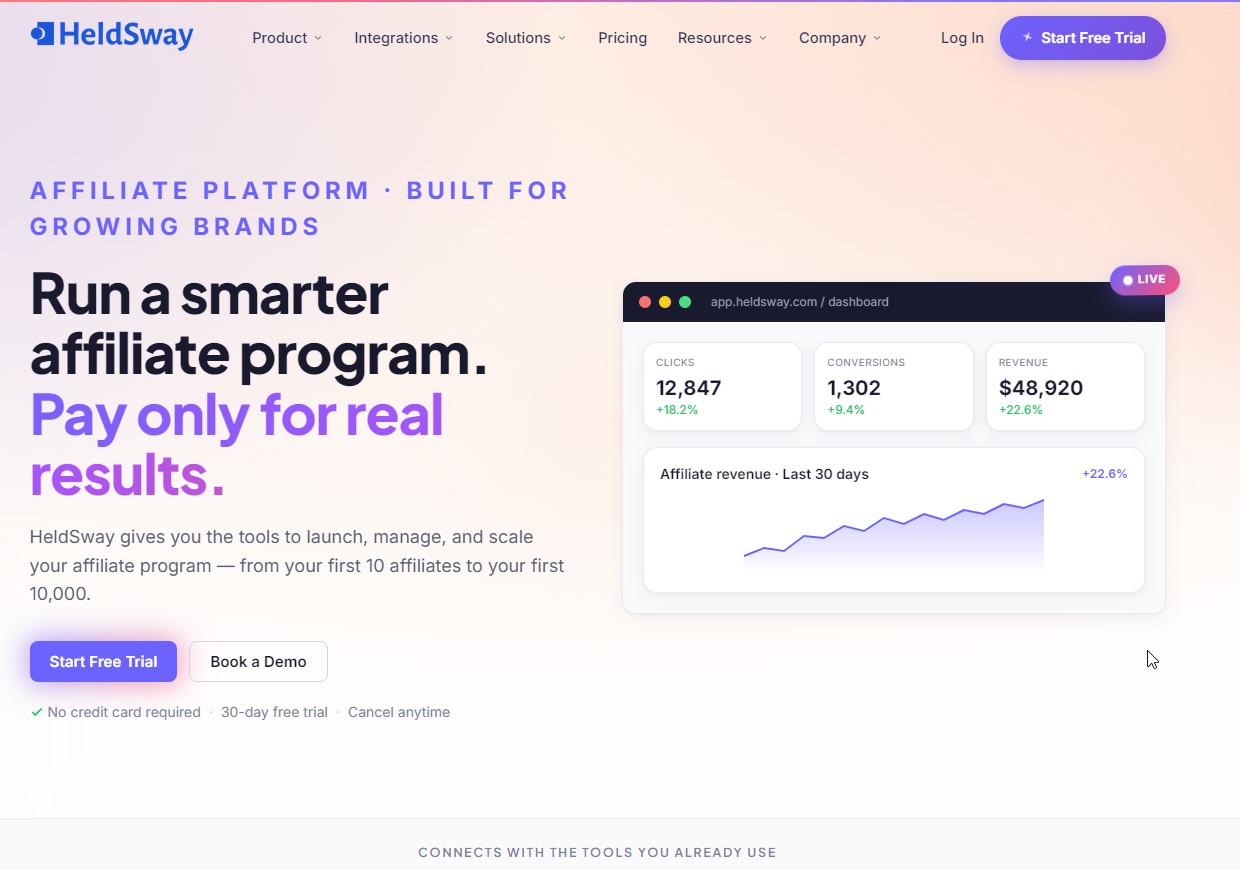
The homepage presents the platform as an Affiliate Platform Built for Growing Brands. Key features highlighted:
- Track every click, conversion, and commission
- 30-day free trial, no credit card required, cancel anytime
- Integrations with Shopify, WooCommerce, WordPress, Stripe, Zapier, PayPal, Paddle, RentMy
Click the “Start Free Trial” button in the top-right navigation bar, or the blue “Start Free Trial” button on the hero section.
Step 2 — Choose Your Account Type
URL: https://accounts.heldsway.com/auth
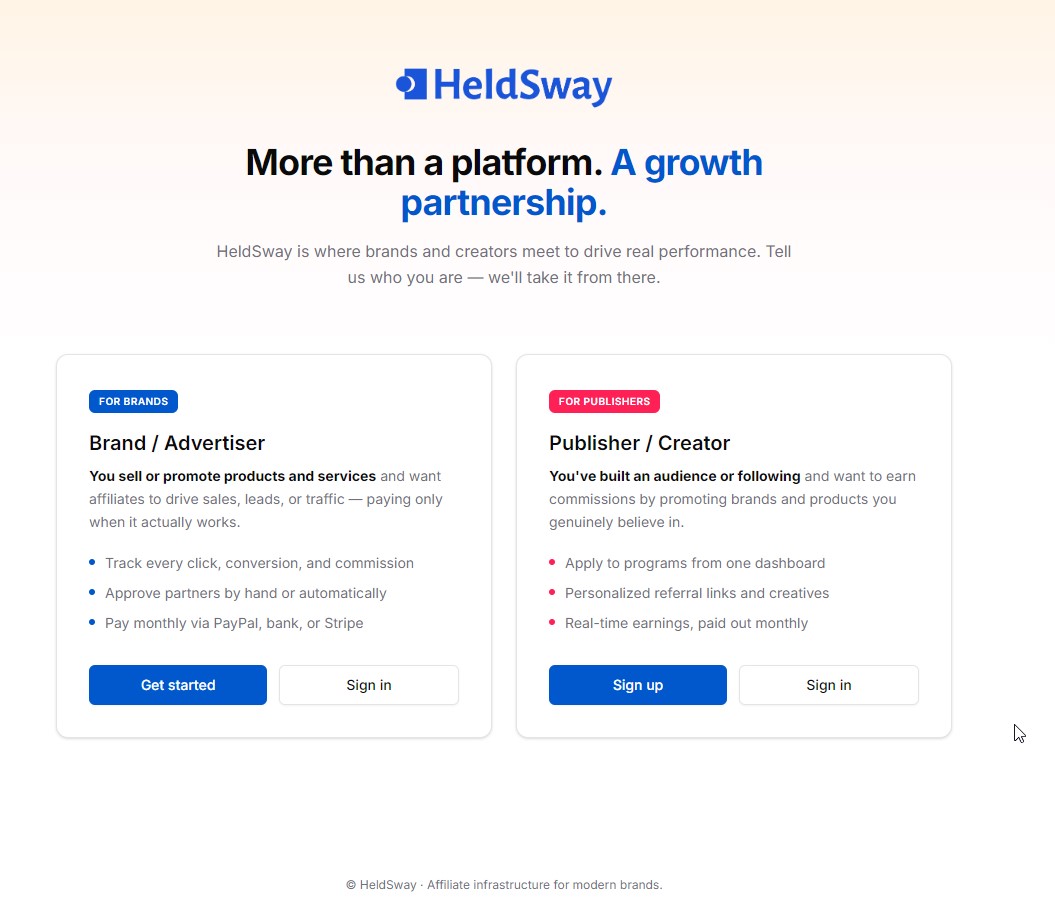
You will land on a selection page: “More than a platform. A growth partnership.”
Two account types are available:
| Account Type | Who it’s for |
|---|---|
| Brand / Advertiser (For Brands) | You sell or promote products and want affiliates to drive sales/leads |
| Publisher / Creator (For Publishers) | You have an audience and want to earn commissions |
For business owners: Click “Get started” under the Brand / Advertiser card.
Step 3 — Enter Your Email Address (Step 1 of 5)
URL: https://accounts.heldsway.com/auth/email
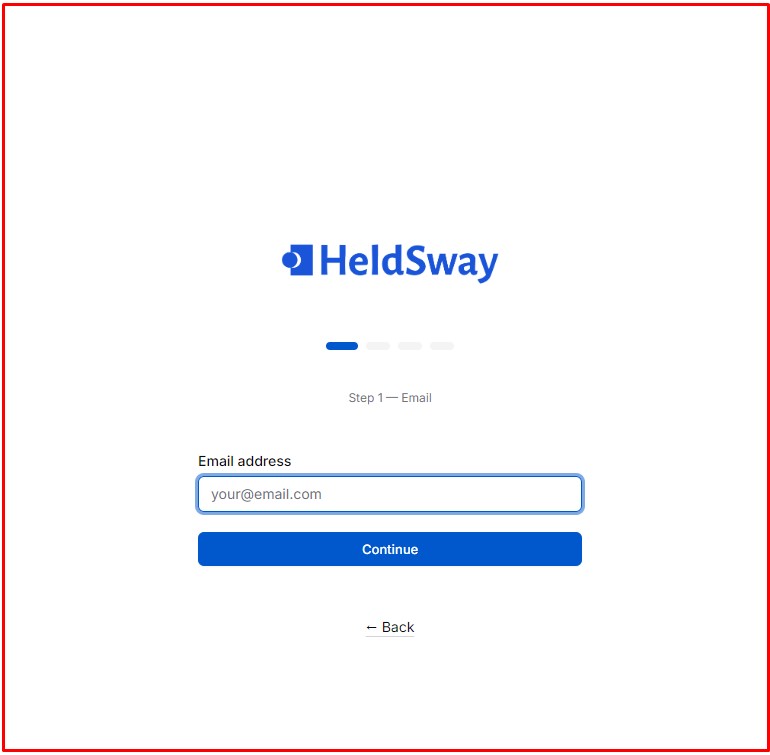
A 4-step progress indicator appears at the top. This is Step 1 — Email.
- Enter your work/business email address in the “Email address” field
- Example:
example@business.com - Click the blue “Continue” button
✅ Tip: Use a real, accessible email address — a verification code will be sent to it.
Step 4 — Create Your Brand Account (Step 2 of 5)
URL: https://accounts.heldsway.com/auth/register/brand
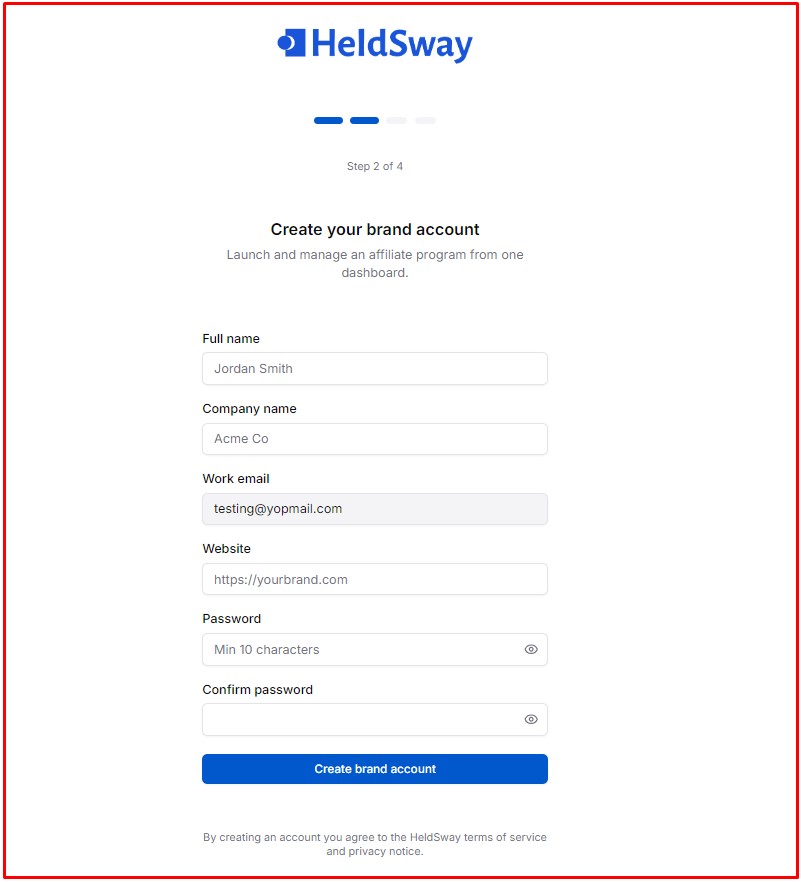
This is Step 2 of 4 — Create your brand account. Fill in all fields:
| Field | Description | Example Value |
|---|---|---|
| Full name | Your full name | Shemulaff Demo |
| Company name | Your business name | Demo Business Co |
| Work email | Pre-filled from Step 1 | shemulaff@yopmail.com |
| Website | Your brand’s website URL | https://demobusiness.com |
| Password | Minimum 10 characters, must include a number and special character | DemoPass2024! |
| Confirm password | Repeat the password | DemoPass2024! |
A password strength meter at the bottom confirms your password is “Strong” when all criteria are met (8+ chars ✅, Number ✅, Special char ✅).
Click “Create brand account” when ready. By creating the account, you agree to HeldSway’s Terms of Service.
Step 5 — Verify Your Email (Step 3 of 5)
URL: https://accounts.heldsway.com/auth/register/verify
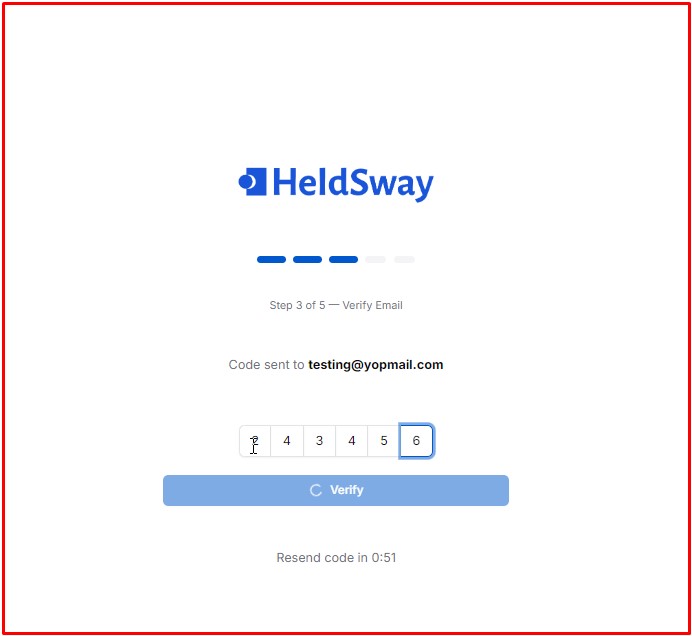
This is Step 3 of 5 — Verify Email.
- HeldSway sends a 6-digit verification code to your email address
- Check your inbox at
shemulaff@yopmail.com - Open the email from HeldSway with subject “Your Verification Code”
Show Image
The email reads: “Your verification code is: 965527. This code expires in 10 minutes.”
- Enter the 6-digit code in the input boxes on the verification screen
- Click “Verify”
- If you didn’t receive a code, click “Resend code” (available after 60 seconds)
Step 6 — Enter Business Details (Step 4 of 5)
URL: https://accounts.heldsway.com/auth/register/business
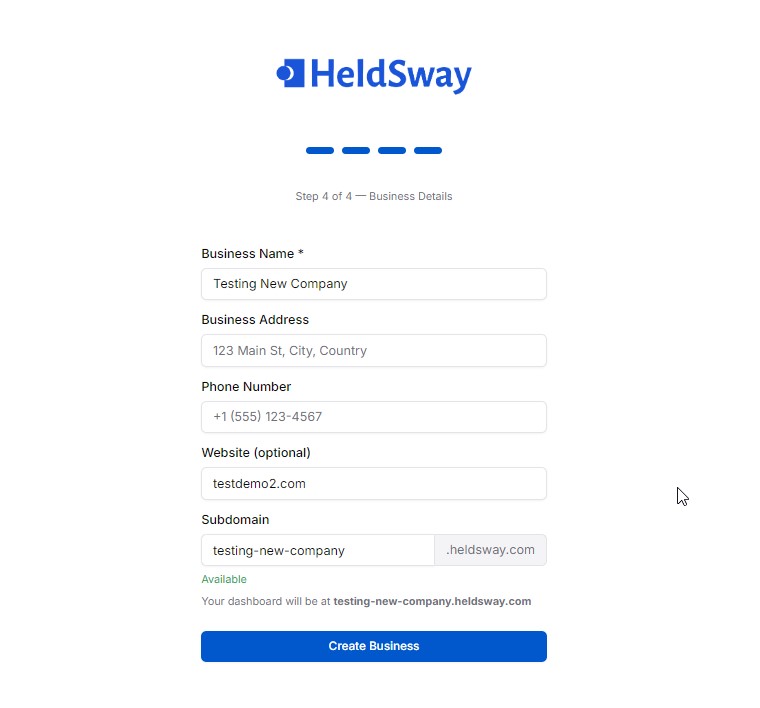
This is Step 4 of 4 — Business Details. Fill in your business information:
| Field | Description | Example |
|---|---|---|
| Business Name* | Your company name (required) | Demo Business Co |
| Business Address | Physical address | 123 Demo Street, Demo City, USA |
| Phone Number | Business phone | +1 (555) 987-6543 |
| Website (optional) | Auto-filled from previous step | https://demobusiness.com |
| Subdomain | Auto-generated from business name | demo-business-co |
Subdomain is important! Your HeldSway dashboard will be permanently accessible at: [your-subdomain].heldsway.com/dashboard
For example: demo-business-co.heldsway.com/dashboard
The subdomain field shows “Available” in green if the name is not taken.
Click “Create Business” to complete setup.
Step 7 — You’re In! The Dashboard
URL: https://demo-business-co.heldsway.com/dashboard
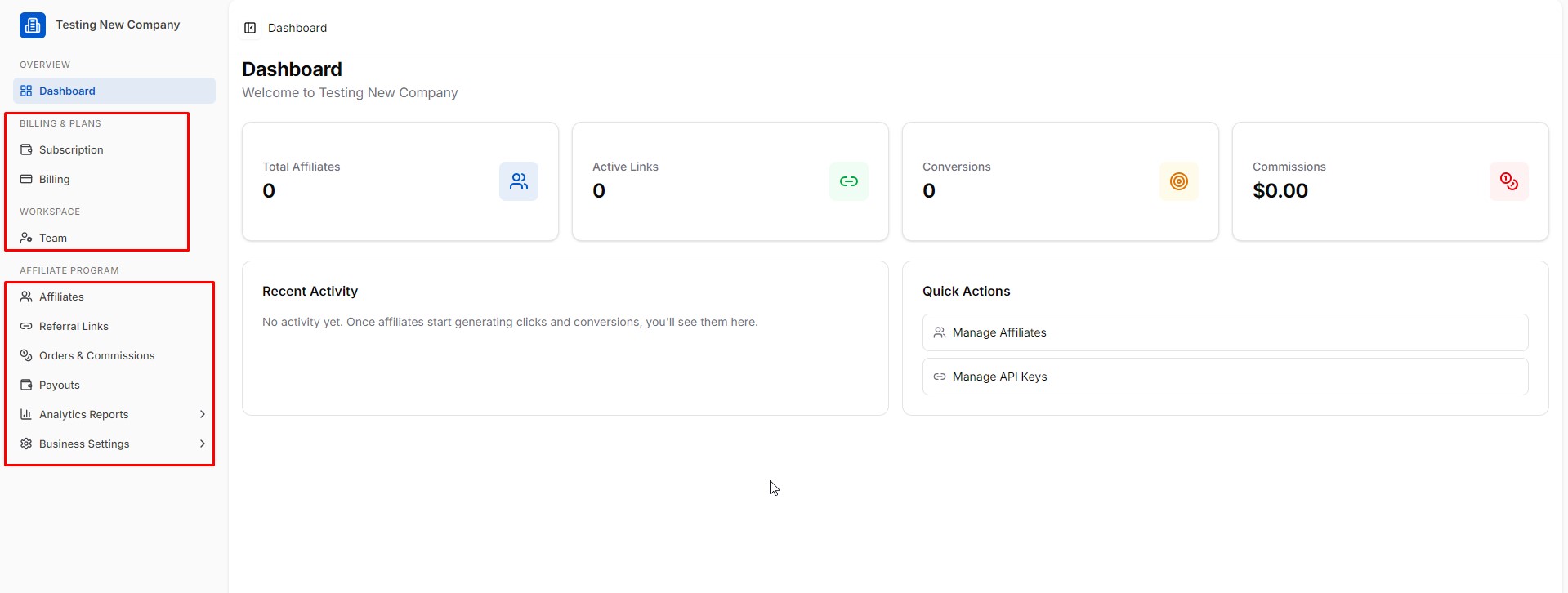
🎉 Your business account is created! You are now on your HeldSway dashboard, showing “Welcome to Demo Business Co.”